CryptoPhoto API & Widgets
No action selected
You can try selecting Get API Session POST actions from the left column.
CryptoPhoto API & Widgets are a compination of REST API and JavaScript widgets that, when added to your web page, modify your page or create an iFrame experience hosted by CryptoPhoto that seamlessly blends into your site.
Features
CryptoPhoto literally blocks phishing. Potential victims cannot be tricked into revealing passwords - not by web sites, not by phone calls, and not in person.
CryptoPhoto neutralizes stolen passwords. Keyloggers and shoulder surfing are no longer useful threats to attackers or observers.
The CryptoPhoto API is easy to understand, easy to incorporate into your existing web site, and provides immediate and substantial security improvements.
Every token is unique - having random row and column codes (2 billion permutations) and random grids of photos (drawn from a massive stock library of hand-selected visually distinct non-controversial royalty free images).
Codes are all cryptographically secure.
CryptoPhoto tokens are all password protected, and CryptoPhoto SmartPhone APPs can also be independently passwords protected - stolen tokens or lost codes cannot be used by others.
No algorithms or seeds exist which can be used to infer or compute token security data.
CryptoPhoto API Keys
Before being able to deploy the CryptoPhoto service into your website, you must register a new CryptoPhoto administration account and obtain a set of API Keys.
Creating and configuring a CryptoPhoto administration account is described here.
-
publickey: Your CryptoPhoto API Private Key
-
privatekey: Your CryptoPhoto API Private Key
Reference 
CryptoPhoto API Session 
Before an end user can use the CryptoPhoto service, you (3rd party) have to obtain a CryptoPhoto session ID from CryptoPhoto.com.
Get API SessionPOST/get/session
Get API Session (.json)POST/get/session.json
Get API Session (.xml)POST/get/session.xml
This is achieved by doing a POST request to https://CryptoPhoto.com/api/get/session.
To receive JSON or XML formated response add .json or .xml to the API endpoint.
Below are the relevant HTTP POST parameters.
POST Data
| Name | Type | Default | Value |
|---|---|---|---|
publickey * |
string | Your CryptoPhoto Public API Key. | |
uid * |
string | A unique ID associated with your user on your website. | |
time * |
string | Number of seconds since epoch (GMT). | |
signature * |
string | HMAC-SHA1-HEX( string, key ) - string: concatenate( privatekey , time , uid , publickey) - key: privatekey |
|
ip * |
string | The IP address of the user who needs access to CryptoPhoto service. | |
authentication |
string | false |
Set this parameter to true if the CryptoPhoto session ID will be used for Challenge Widget. |
defaultmobile |
string | Set this parameter to a true value in order to receive back the default mobile token ID (the mobile token used for the last CryptoPhoto authentication). |
Plain Text Responses
| Line | Description |
|---|---|
| Line 1 | success or error. success if we managed to create a new CryptoPhoto session. |
| Line 2 | If Line 1 is error, then this string will be an error code. If Line 1 is success, then this string will be an unique CryptoPhoto session ID. Store this ID for further use (bear in mind that sessions ID are valid only for 30 minutes). |
| Line 3 | true or false If true then the user associated with “uid” has a CryptoPhoto token generated and downloaded. Otherwise he doesn’t. If “defaultmobile” was set with your request and user has used a mobile token for the last authentication then this line will be set to true|123412341234 where the number is the token ID. |
| Line 4 | signature value HMAC-SHA1-HEX( string, key ) - string: concatenate( publickey , time , uid , privatekey) - key: privatekey time and uid are used from the API request. Note: You can verify this signature to ensure that the api call response is actually from CryptoPhoto. |
JSON & XML Responses
| Name | Value | Description |
|---|---|---|
| success | 1 | Present if we managed to create a new CryptoPhoto session. |
| error | 1 | Present if we failed to create a new CryptoPhoto session. |
| message | “error message” | Present if we failed to create a new CryptoPhoto session. |
| sid | 812…0a4 | A random string that represents a unique CryptoPhoto session ID. Store this ID for further use (bear in mind that sessions ID are valid only for 30 minutes). |
| hastoken | true/false | If “true” then the user associated with “uid” has a CryptoPhoto token generated and downloaded. Otherwise he doesn’t. |
| signature | 8a0…3d4 | HMAC-SHA1-HEX( string, key ) - string: concatenate( publickey , time , uid , privatekey) - key: privatekey time and uid are used from the API request. Note: You can verify this signature to ensure that the api call response is actually from CryptoPhoto. |
| defaulttokenid | 123412341234 | The default mobile token ID (the mobile token used in the last authentication). This element is only present if the call for the session ID included “defaultmobile” and a mobile token was used in the last CryptoPhoto authentication |
Possible Error Messages
| Error (string) | Description |
|---|---|
| incorrect-api-request | Missing require parameters or their value is not properly set. |
| incorrect-signature | The value of signature is not correct. |
| incorrect-timestamp | The value of time is not correct. Check your machine date/time configuration. |
| inexistent-provider | The provided publickey is not valid. |
| cannot-create-token-session (details) | Generic error. Check details for more info. |
| ip-not-allowed | The IP of the machine from where you make the api call is not in the allowed IPs list. Check your CryptoPhoto account and add proper IPs. |
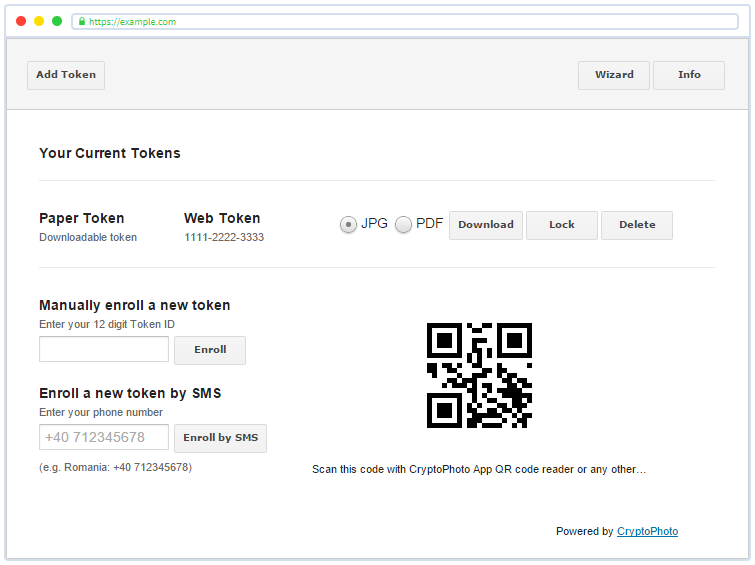
Token Generation Widget 
Token Generation WidgetGET/token{?sd}
The first step in integrating CryptoPhoto is making the Token Generation Widget show up on one of your user’s account page.
Your user can then use this page to create/download new CryptoPhoto Token or manage existent Tokens.
To make the Token Generation Widget appear when your page loads, you will need to insert this snippet of JavaScript code in your page (the widget will be created in the same place as the script) and replace session_id with the CryptoPhoto session ID obtained at the previous step (see CryptoPhoto API Session for details):
<script type="text/javascript"
   src="https://CryptoPhoto.com/api/token?sd=session_id">
</script>
So your page will look something like this:
<html>
<body>

<!-- ... your HTML content ... -->

<script type="text/javascript"
  src="https://CryptoPhoto.com/api/token?sd=session_id">
</script>

<!-- ... more of your HTML content ... -->

</body>
</html>
If you want more control of where the widget should be displayed insert a div element with proper attributes as indicated bellow:
<html>
<body>

<!-- ... your HTML content ... -->

<div id="cp_widget" class="cp_widget"></div>

<!-- ... more of your HTML content ... -->

<script type="text/javascript"
  src="https://CryptoPhoto.com/api/token?sd=session_id">
</script>
</body>
</html>
Token Generation Widget Example:
CryptoPhoto Authentication 
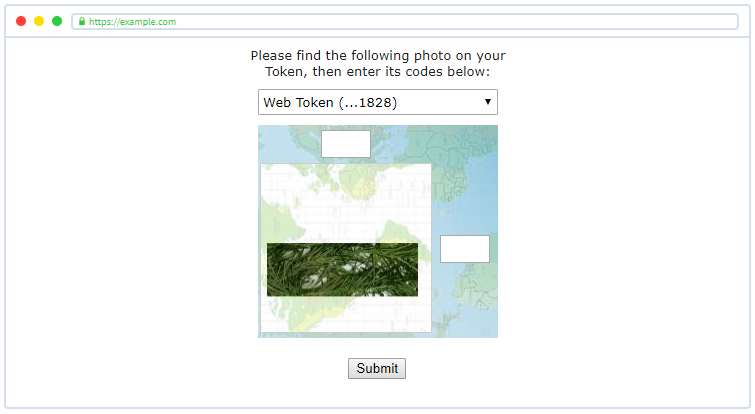
Challenge Widget 
Challenge Widget ScriptGET/challenge{?sd}
The first step in integrating CryptoPhoto Authentication is making the CryptoPhoto Challenge Widget show up on a page after the user has been authenticated by the usual username/password techniques.
We recommend showing the CryptoPhoto Challenge Widget image after you’ve acquired your user’s name and password, so that you know which uid to use when getting a new CryptoPhoto session ID.
Important: set authentication to “true” when getting a CryptoPhoto session ID to be used for this widget.
To make the CryptoPhoto Challenge Widget appear when your page loads, you will need to insert this snippet of JavaScript code in your <form> element and replace session_id with the CryptoPhoto Session ID obtained at the previous step (see CryptoPhoto API Session for details):
<script type="text/javascript"
   src="https://CryptoPhoto.com/api/challenge?sd=session_id">
</script>
So your page will look something like this:
<html>
<body>

<!-- ... your HTML content ... -->

<form action="" method="post">

    <!-- ... your form code here ... -->
    <script type="text/javascript"
      src="https://CryptoPhoto.com/api/challenge?sd=session_id">
    </script>
    <!-- ... more of your form code here ... -->

</form>

<!-- ... more of your HTML content ... -->

</body>
</html>
If you want more control of where the widget should be displayed insert a div element with proper attributes as indicated bellow:
<html>
<body>

<!-- ... your HTML content ... -->

<form action="" method="post">

    <!-- ... your form code here ... -->
    <div id="cp_widget" class="cp_widget"></div>
    <!-- ... more of your form code here ... -->

</form>

<!-- ... more of your HTML content ... -->

<script type="text/javascript"
  src="https://CryptoPhoto.com/api/challenge?sd=session_id">
</script>
</body>
</html>
Challenge Widget Example:
Verify Challenge Codes 
After your page is successfully displaying CryptoPhoto Challenge Widget and the user submits the CryptoPhoto challenge code, you need to configure your server to check whether the answers entered by the users are correct.
Verifying Challenge CodesPOST/verify
Verifying Challenge Codes (.json)POST/verify.json
Verifying Challenge Codes (.xml)POST/verify.xml
This is achieved by doing a POST request to https://CryptoPhoto.com/api/verify.
To receive JSON or XML formated response add .json or .xml to the API endpoint.
Below are the relevant HTTP POST parameters.
POST Data
| Name | Type | Value |
|---|---|---|
publickey * |
string | Your CryptoPhoto Public API Key. |
uid * |
string | A unique ID associated with your user on your website. |
time * |
string | Number of seconds since epoch (GMT). |
signature * |
string | HMAC-SHA1-HEX( string, key ) - string: concatenate( privatekey , time , uid , publickey) - key: privatekey |
ip * |
string | The IP address of the user who needs access to CryptoPhoto service. |
selector * |
string | The value of cp_selector sent via the form. |
response_row * |
string | The value of token_response_field_row sent via the form. |
response_col * |
string | The value of token_response_field_col sent via the form. |
cph * |
string | The value of cp_cph sent via the form. |
Plain Text Responses
| Line | Description |
|---|---|
| Line 1 | success or error. success if we managed to validate the challenge codes. |
| Line 2 | Message describing the success/error status. |
| Line 3 | signature value HMAC-SHA1-HEX( string, key ) - string: concatenate( publickey , time , uid , privatekey) - key: privatekey time and uid are used from the API request. Note: You can verify this signature to ensure that the api call response is actually from CryptoPhoto. |
JSON & XML Responses
| Name | Value | Description |
|---|---|---|
| success | 1 | Present if we managed to validate the challenge codes. |
| error | 1 | Present if we failed to validate the challenge codes. |
| message | “message” | A message describing the success/error status. |
| signature | 8a0…3d4 | HMAC-SHA1-HEX( string, key ) - string: concatenate( publickey , time , uid , privatekey) - key: privatekey time and uid are used from the API request. Note: You can verify this signature to ensure that the api call response is actually from CryptoPhoto. |
Possible Messages
| Message | Description |
|---|---|
| incorrect-api-request | Missing require parameters or their value is not properly set. |
| incorrect-signature | The value of signature is not correct. |
| incorrect-timestamp | The value of time is not correct. Check your machine date/time configuration. |
| inexistent-provider | The provided publickey is not valid. |
| ip-not-allowed | The IP of the machine from where you make the api call is not in the allowed IPs list. Check your CryptoPhoto account and add proper IPs. |
| correct-token-response | The challenge codes are valid. |
| incorrect-token-response | The challenge codes are invalid. |
| incorrect-verify-call | The api call is not valid. Check your POST parameters. |
Transactions Verification 
Transactions Widget 
You can use CryptoPhoto Transaction Verification to ask for the user’s approval before processing submitted web form data. Transaction verification also provides means to verify if the data submitted by the user is the same with the data arriving to your server.
This blocks malware on customer PCs and related attacks that might wish to interfere with, or inject, customer actions.
Transactions Widget ScriptGET/tv
Before starting to use transaction verification you need to create a template to be used for a user’s approval.
Start by including this HTML code into the web page where you want to use Transaction Verification (nb. the web page MUST contain at least one web form that you want to verify).
<script type="text/javascript"
  src="https://CryptoPhoto.com/api/tv">
</script>
So your page might look something like this:
<html>
<body>

<!-- ... your HTML content ... -->

<form action="" method="post">
    Password: <input type="password" name="password">
    New Password: <input type="password" name="newpassword">
    Re-type Password: <input type="password" name="repassword">
    <input type="submit" name="change" value="Change">
</form>

<!-- ... more of your HTML content ... -->
<script type="text/javascript"
  src="https://CryptoPhoto.com/api/tv">
</script>
</body>
</html>
After you’ve included the script reload your web page and follow the instructions.
Transactions Widget Example:

Transactions Widget Usage 
You can use CryptoPhoto Transaction Verification to ask for the user’s approval before processing submitted web form data. Transaction verification also provides means to verify if the data submitted by the user is the same with the data arriving to your server.
This blocks malware on customer PCs and related attacks that might wish to interfere with, or inject, customer actions.
Transactions Widget Script UsageGET/tv{?key,sid}
After you’ve created a Transaction Verification Template you can use it by referencing it in your web page (replacing the “api/tv” script):
So your page might look something like this:
<html>
<body>

<!-- ... your HTML content ... -->

<form action="" method="post">
    Password: <input type="password" name="password">
    New Password: <input type="password" name="newpassword">
    Re-type Password: <input type="password" name="repassword">
    <input type="submit" name="change" value="Change">
</form>

<!-- ... more of your HTML content ... -->
<script type="text/javascript"
  src="https://CryptoPhoto.com/api/tv?key=KEY&sid=SD">
</script>
</body>
</html>
Below are the relevant script GET parameters.
Get Data
| Name | Type | Value |
|---|---|---|
key * |
string | Your Transaction Verification Template Key. |
sid * |
string | A CryptoPhoto session ID (see CryptoPhoto API Session for details). |
After you’ve included the script reload your web page and submit some test data.
Transaction Verification Validation 
Once a user has responded to a transaction verification, two additional hidden form fields are submitted with the web form to your server.
| Name | Type | Value |
|---|---|---|
cpJWSrfc7515 * |
string | A JWT encoded token. |
cpTVresponse * |
string | User’s response to the Transaction Verification. |
Validating this transaction is achieved by doing a POST request to https://CryptoPhoto.com/api/verify/cptv.
Verifying Transaction Verification TokenPOST/verify/cptv
Verifying Transaction Verification Token (.json)POST/verify/cptv.json
Verifying Transaction Verification Token (.xml)POST/verify/cptv.xml
POST Data
| Name | Type | Value |
|---|---|---|
token * |
string | The value of submitted cpJWSrfc7515. |
Plain Text Responses
| Line | Description |
|---|---|
| Line 1 | success or error. success if we managed to validate cpJWSrfc7515 token. |
| Line 2 | Short message describing the success/error status. |
| Line 3 | If Line 1 is error then this is a description of the error. Otherwise is a signature. |
| Line 3 | signature value HMAC-SHA1-HEX( string, key ) - string: concatenate( publickey , SHA1-HEX( token ) , privatekey) - key: privatekey token is used from the API request. Note: You can verify this signature to ensure that the api call response is actually from CryptoPhoto. |
JSON & XML Responses
| Name | Value | Description |
|---|---|---|
| success | 1 | Present if we managed to validate the challenge codes. |
| error | 1 | Present if we failed to validate the challenge codes. |
| message | “message” | A short message describing the success/error status. |
| description | “error description” | Describes an error message. |
| signature | 8a0…3d4 | HMAC-SHA1-HEX( string, key ) - string: concatenate( publickey , SHA1-HEX( token ) , privatekey) - key: privatekey token is used from the API request. Note: You can verify this signature to ensure that the api call response is actually from CryptoPhoto. |
Possible Messages
| Message | Description |
|---|---|
| token-valid | cpJWSrfc7515 token is valid. |
| incorrect-verify-cptv-call | There was an error when validating the token. See description for more details. |
Verifying Transaction Verification Data
cpJWSrfc7515 contains a JSON Web Signature (rfc7515). The JWS is formed by concatenating (delimited by a period char) a JWS Header, a JWS Payload and JWS signature.
| JWS Part | Description |
|---|---|
| JWS Header | A Base64URL encoded JSON which indicates the algorithm used for generating the signature (we’re using HMAC SHA-256). |
| JWS Payload | A Base64URL encoded JSON Web Token. |
| JWS Signature | A Base64URL encoded binary string resulted by applying HMAC SHA-256 over “JWSHeader.JSWPayload” using your CryptoPhoto API Private Key as HMAC key. |
In order to verify that the form data received by your server is the same with the data send by the user you have to:
-
Base64URL decode the JWS Payload (split
cpJWSrfc7515string by period char.and use the second part) -
The Base64URL decoded string is a JSON Web Token formatted as follows:
{
    "iat": 1499072575,
    "exp": 1499076175,
    "nbf": 1499068975,
    "tvSentAt": 1499072570,
    "pid": "1f3e8ab8f5446d9e2c3b2889edd7e9a2",
    "fieldsOrder": "cpTVresponse,password,newpassword,repassword",
    "fieldsSha256": "inmIkP6TgXFjsQtfe9LKTSXYTFJzmmRaiJwXPu59nT0"
}| Key | Description |
|---|---|
iat |
The “iat” (issued at) claim identifies the time at which the JWT was issued (number of seconds since epoch). |
exp |
The “exp” (expiration time) claim identifies the expiration time on or after which the JWT MUST NOT be accepted for processing (number of seconds since epoch). |
nbf |
The “nbf” (not before) claim identifies the time before which the JWT MUST NOT be accepted for processing (number of seconds since epoch). |
tvSentAt |
The “tvSentAt” claim identifies the time at which the Transaction Verification was sent to the user’s phone. |
pid |
Key used inernally by CryptoPhoto. |
fieldsOrder |
Indicates in which order you have to concatenate the values of your form fields (comma separated list of your web form fields name). |
fieldsSha256 |
SHA256 result when hashing the string resulted by concatenating your form fields values in the manner specified by fieldsOrder. |
- SHA256 hash your string resulted by concatenating your form fields values (see
fieldsOrder) and compare it tofieldsSha256. If they match the data was not changed in transit from your user to your server.
Out of Band Transaction 
You can also send a transaction verification without using a browser. Eg. Ask user approval for a shell operation (ssh login).
Out of Band TransactionPOST/send/cptv
Out of Band Transaction (.json)POST/send/cptv.json
Out of Band Transaction (.xml)POST/send/cptv.xml
This is achieved by doing a POST request to https://CryptoPhoto.com/api/send/cptv.
To receive JSON or XML formated response add .json or .xml to the API endpoint.
Below are the relevant HTTP POST parameters.
POST Data
| Name | Type | Value |
|---|---|---|
publickey * |
string | Your CryptoPhoto Public API Key. |
uid * |
string | A unique ID associated with your user on your website. |
time * |
string | Number of seconds since epoch (GMT). |
signature * |
string | HMAC-SHA1-HEX( string, key ) - string: concatenate( privatekey , time , uid , publickey) - key: privatekey |
ip * |
string | The IP address of the user who needs access to CryptoPhoto service. |
cptv * |
string | JSON encoded Transaction Verification options. |
Where cptv must be formatted as follow:
{
    "key"      : "321asd095605ede64e089c19aed7911c",
    "callback" : "https://example.com/callMeBack",
    "tokenid"  : "123412341234",
    "formData" : { "username": "UserName"}
}
CPTV Data
| Name | Type | Value |
|---|---|---|
key * |
string | Your Transaction Verification Template Key. |
callback * |
string | An URL where CryptoPhoto can HTTP POST the response from the user. |
tokenid |
string | Optional. If present CryptoPhoto will try to send the transaction verification to the device containing the specified token ID. Otherwise CryptoPhoto will send it to the token last used for authentication. |
formData * |
string | A virtual web form represenation. Eg. {“fieldName”: “fieldValue”, “fieldName2”: “fieldValue2”} |
Plain Text Success Response
| Line | Description |
|---|---|
| Line 1 | success if we managed to send a transaction verification. |
| Line 2 | Short message describing the success status. |
| Line 3 | signature value HMAC-SHA1-HEX( string, key ) - string: concatenate( publickey , time , uid , privatekey) - key: privatekey time and uid are used from the API request. Note: You can verify this signature to ensure that the api call response is actually from CryptoPhoto. |
| Line 4 | Device name were CryptoPhoto has send the transaction. |
| Line 5 | Device platform were CryptoPhoto has send the transaction. Eg. android, ios… |
| Line 6 | A GUID unique string. When CryptoPhoto will post back the user’s response to your callback url, the JSON Web Token will contain this GUID. |
Plain Text Error Response
| Line | Description |
|---|---|
| Line 1 | error if we failed to send a transaction verification. |
| Line 2 | Short message describing the error status. |
| Line 3 | Description of the error. |
| Line 3 | signature value HMAC-SHA1-HEX( string, key ) - string: concatenate( publickey , time , uid , privatekey) - key: privatekey time and uid are used from the API request. Note: You can verify this signature to ensure that the api call response is actually from CryptoPhoto. |
JSON & XML Responses
| Name | Value | Description |
|---|---|---|
| success | 1 | Present if we managed to validate the challenge codes. |
| error | 1 | Present if we failed to validate the challenge codes. |
| message | “message” | A short message describing the success/error status. |
| description | “error description” | Describes an error message. |
| deviceName | “deviceName” | Device name were CryptoPhoto has send the transaction. |
| platform | “platformName” | Device platform were CryptoPhoto has send the transaction. Eg. android, ios… |
| GUID | “string” | A GUID unique string. When CryptoPhoto will post back the user’s response to your callback url, the JSON Web Token will contain this GUID. |
| signature | 8a0…3d4 | HMAC-SHA1-HEX( string, key ) - string: concatenate( publickey , time , uid , privatekey) - key: privatekey time and uid are used from the API request. Note: You can verify this signature to ensure that the api call response is actually from CryptoPhoto. |
Possible Messages
| Message | Description |
|---|---|
| verify-request-started | CryptoPhoto has sent the transaction. |
| incorrect-send-cptv-request | One or more of the post parameters are incorect. See description for more details. |
| send-cptv-request-not-possible | There was an error when sending the transaction. See description for more details. |
Callback Response
After CryptoPhoto receives the user response, it will HTTP POST the following data back to you:
| Name | Type | Value |
|---|---|---|
cpJWSrfc7515 |
string | A JWT encoded token. |
cpTVresponse |
string | User’s response to the Transaction Verification. |
| form data | POST parameters | CryptoPhoto will post back the form fields you provided in cptv JSON. |
The validation of this data is done the same way is done for Transaction Verification Validation.
Ecryption and decryption
If you wish the user’s phone to encrypt a form value (it will be encrypted with the token’s RSA keys) you need to add special form fields.
Eg. Web Form Transaction Verification
<html>
<body>

<!-- ... your HTML content ... -->

<form action="" method="post">
    UserName: <input type="text" name="username">
    <input type="hidden" name="username_cpencrypt">
    <input type="submit" name="save" value="Save">
</form>

<!-- ... more of your HTML content ... -->
<script type="text/javascript"
  src="https://CryptoPhoto.com/api/tv?key=321asd095605ede64e089c19aed7911c&sid=aqzswxdecfrvgtb">
</script>
</body>
</html>
Eg. Out of Band Transaction Verification cptv
{
    "key"      : "321asd095605ede64e089c19aed7911c",
    "callback" : "https://example.com/callMeBack",
    "formData" : {
        "username": "UserName"
        "username_cpencrypt": "true"
    }
}
When the user responds form data will contain the encrypted value for username form field. If username_cpencrypt is “true” then encryption was a succes. If username_cpencrypt is “false” then encryption failed. In this case a new form field will be present called username_cpencrypt_err which will contain a message explaining why the encryption failed.
If you wish the user’s phone to decrypt a previously encrypted form value you need to add the following special form fields.
Eg. Web Form Transaction Verification
<html>
<body>

<!-- ... your HTML content ... -->

<form action="" method="post">
    UserName: <input type="text" name="username" value="EncryptedValue">
    <input type="hidden" name="username_cpdecrypt">
    <input type="submit" name="save" value="Save">
</form>

<!-- ... more of your HTML content ... -->
<script type="text/javascript"
  src="https://CryptoPhoto.com/api/tv?key=321asd095605ede64e089c19aed7911c&sid=aqzswxdecfrvgtb">
</script>
</body>
</html>
Eg. Out of Band Transaction Verification cptv
{
    "key"      : "321asd095605ede64e089c19aed7911c",
    "callback" : "https://example.com/callMeBack",
    "formData" : {
        "username": "EncryptedValue"
        "username_cpdecrypt": "true"
    }
}
When the user responds form data will contain the decrypted value for username form field. If username_cpdecrypt is “true” then decryption was a succes. If username_cpdecrypt is “false” then decryption failed. In this case a new form field will be present called username_cpdecrypt_err which will contain a message explaining why the decryption failed.
Wizard Configuration 
Wizard Widget Script 
Wizard Widget ScriptGET/wizard-setup{?sd}
Stand alone setup wizard widget useful for first time users.
It helps users to enroll tokens or get CryptoPhoto App on their smartphone devices.
To make the Wizard Widget appear when your page loads, you will need to insert this snippet of JavaScript code in your page (the widget will be created in the same place as the script) and replace session_id with the CryptoPhoto session ID obtained at the previous step (see CryptoPhoto API Session for details):
<script type="text/javascript"
   src="https://CryptoPhoto.com/api/wizard-setup?sd=session_id">
</script>
So your page will look something like this:
<html>
<body>

<!-- ... your HTML content ... -->

<script type="text/javascript"
  src="https://CryptoPhoto.com/api/wizard-setup?sd=session_id">
</script>

<!-- ... more of your HTML content ... -->

</body>
</html>
If you want more control of where the widget should be displayed insert a div element with proper attributes as indicated bellow:
<html>
<body>

<!-- ... your HTML content ... -->

<div id="cp_widget" class="cp_widget"></div>

<!-- ... more of your HTML content ... -->

<script type="text/javascript"
  src="https://CryptoPhoto.com/api/wizard-setup?sd=session_id">
</script>
</body>
</html>
Wizard Widget Example:

Wizard Widget Customization
You can customize the functionality of the wizard by specifying additional POST parameters when getting a CryptoPhoto API Session to be used with the wizard widget. This customization works with Token Generation Widget as well.
| Name | Type | Value |
|---|---|---|
email |
string | Your user’s email address. |
email_ops |
number | 1 - Send auto email if they don’t have any tokens (never downloaded or enrolled tokens). 2 - Send auto email if they don’t have any tokens associated with the account (they might have downloaded some in the past but deleted them). 4 - Send auto email regardless if they have tokens or not. combined - A bitwise OR operation between the three options above (eg. 3 = 1|2). |
phone |
string | Your user’s mobile phone number (international format, eg. +14155552671). |
phone_ops |
number | 1 - Send auto SMS if they don’t have any tokens (never downloaded or enrolled). 2 - Send auto SMS if they don’t have any tokens associated with the account (they might have downloaded some in the past but deleted them). 4 - Send auto SMS regardless if they have tokens or not. combined - A bitwise OR operation between the three options above (eg. 7 = 1|2|4). |
Code Samples 
-
Python cryptophoto-python-2.8.zip
-
.NET cryptophoto-dotnet-1.1.zip (& sample website: cp-dotnet-website-1.1.zip)
-
JAVA/J2EE cryptophoto-java-1.1.zip
Code Guides 
Code tutorials on deploying CryptoPhoto services.